Ever wanted to customize your connect wallet and found it hard, or you just don’t know how?
Now you have the answer you’ve been looking for.
You already own the CCC provider. What you have been missing is a connect flow you can shape: which wallets appear, how a single row looks, and what the person sees after they connect. Icon, name, address, balance, or a did:ckb profile. Your layout. Your classes.
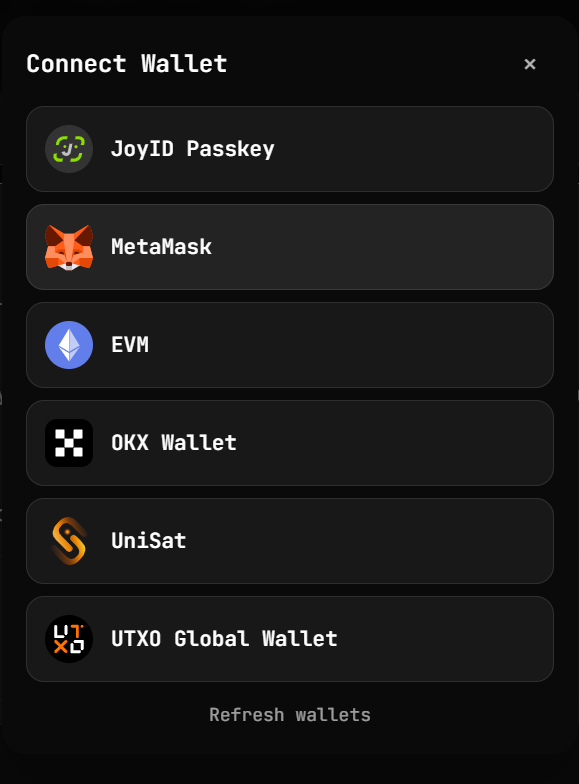
What you get
-
A connect button that disappears once a wallet is connected, so your own layout can take its place
-
A dialog you fill yourself: wallet list, chain choice, connecting state, then the account
-
A wallet list you can narrow to the names you support, or leave open to every wallet CCC finds
-
One row you can restyle without touching the others
-
Icon only, name only, or both
-
An account view you compose: wallet profile, or a did:ckb avatar, name, and identifier
-
Disconnect and switch network, placed where you want them
-
Balance digits that truncate instead of round, and an address you shorten from both ends
Leave the dialog out and open() still opens CCC. Mount it, and that same click opens yours.
Install
npm install ckb-connect-wallet-kit @ckb-ccc/connector-react react react-dom
Tailwind v4 does not scan node_modules until you point it at the package:
@import "tailwindcss";
@source "../node_modules/ckb-connect-wallet-kit/dist";
Sit the kit under the ccc.Provider you already have. The kit never mounts CCC.
The dialog is yours
ConnectWalletDialog does not draw a popup by itself. You decide the chrome. ConnectWalletDialogOverlay is the centered modal. Skip it and the same steps can live in a drawer, a dropdown, or a page.
open below comes from useConnectWallet(). The connect button calls it. Any element you write can call it too.
<ConnectWalletContainer>
  <ConnectWalletButton />
  <ConnectWalletDialog>
    <ConnectWalletDialogOverlay>
      <ConnectWalletDialogWallets>
        <ConnectWalletDialogWalletsHeader>
          <h2>Connect Wallet</h2>
          <ConnectWalletDialogClose />
        </ConnectWalletDialogWalletsHeader>
        <ConnectWalletDialogWalletList />
        <ConnectWalletDialogWalletsFooter>
          <ConnectWalletDialogWalletsRefresh />
        </ConnectWalletDialogWalletsFooter>
      </ConnectWalletDialogWallets>
      <ConnectWalletDialogSigners />
      <ConnectWalletDialogConnecting />
      <ConnectWalletDialogAccount>
        <ConnectWalletDialogAccountHeader>
          <ConnectWalletName />
          <ConnectWalletDialogClose />
        </ConnectWalletDialogAccountHeader>
        <ConnectWalletAddress />
        <ConnectWalletBalance />
      </ConnectWalletDialogAccount>
    </ConnectWalletDialogOverlay>
  </ConnectWalletDialog>
</ConnectWalletContainer>
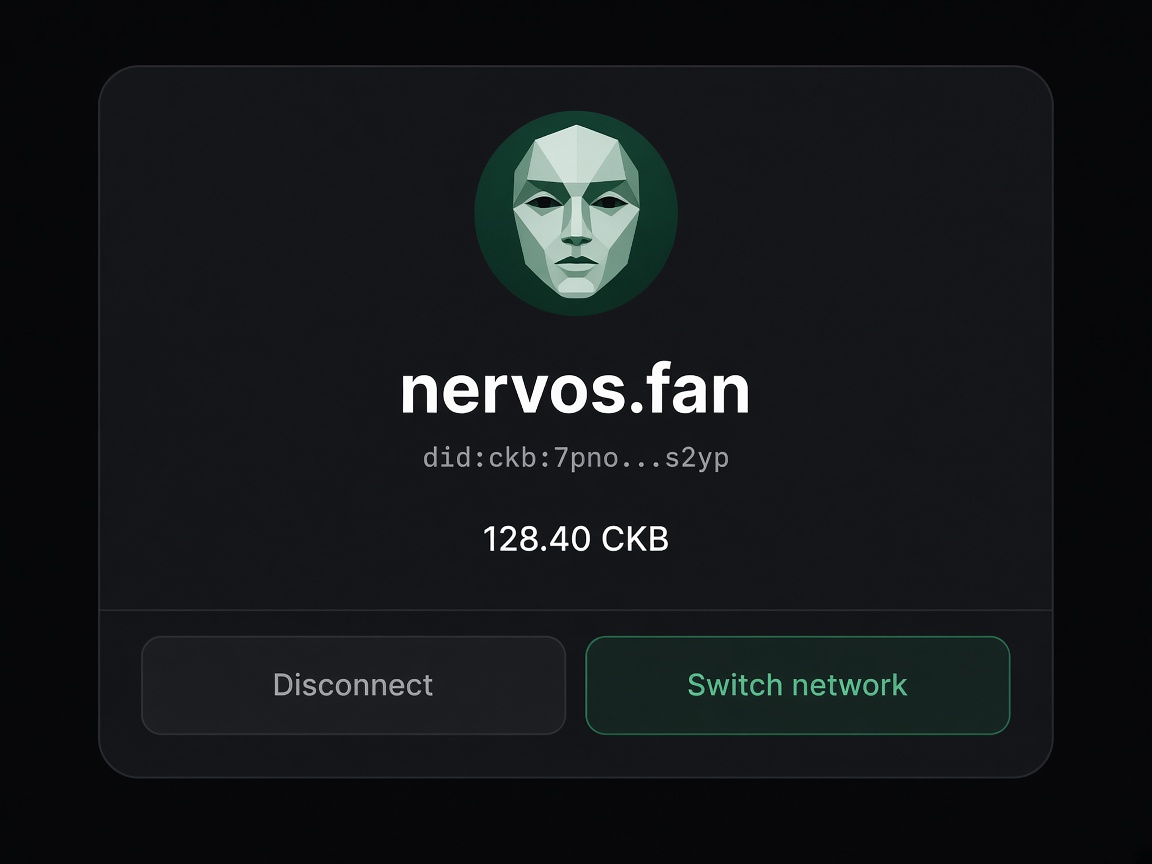
One signer connects immediately. Several signers move to the chain step. After a successful connect the dialog stays on the account step. Disconnect brings the wallet list back.
After they connect
This is the account step: the connected wallet dialog. Put the header, the profile, and the footer in the order your product needs.
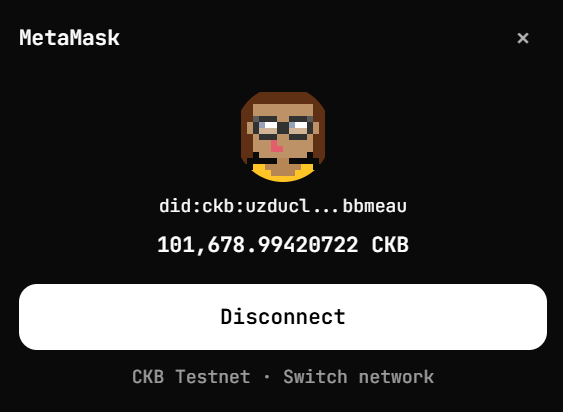
With did:ckb
Wrap the account body in ConnectWalletDid. The avatar, display name, and identifier come from the lock’s did:ckb profile. Each piece takes a fallback, so a wallet with no DID still has something to show.
<ConnectWalletDialogAccount>
  <ConnectWalletDialogAccountHeader>
    <ConnectWalletName />
    <ConnectWalletDialogClose />
  </ConnectWalletDialogAccountHeader>
  <ConnectWalletDid>
    <ConnectWalletDidAvatar
      className="h-16 w-16"
      fallback={<ConnectWalletImage className="h-16 w-16 rounded-2xl" />}
    />
    <ConnectWalletDidName fallback={<ConnectWalletAddress frontChars={6} endChars={4} />} />
    <ConnectWalletDidId />
    <ConnectWalletBalance />
  </ConnectWalletDid>
  <ConnectWalletDialogAccountFooter>
    <ConnectWalletDisconnect />
    <ConnectWalletSwitchNetwork />
  </ConnectWalletDialogAccountFooter>
</ConnectWalletDialogAccount>
Nothing is fetched until you render ConnectWalletDid.
Wallet profile
Skip DID and show the wallet itself: icon, name, address, balance.
<ConnectWalletDialogAccount>
  <ConnectWalletDialogAccountHeader>
    <ConnectWalletImage />
    <ConnectWalletName />
    <ConnectWalletDialogClose />
  </ConnectWalletDialogAccountHeader>
  <ConnectWalletAddress frontChars={6} endChars={4} />
  <ConnectWalletBalance decimalPlaces={4} />
  <ConnectWalletDialogAccountFooter>
    <ConnectWalletDisconnect buttonText="Disconnect" />
    <ConnectWalletSwitchNetwork />
  </ConnectWalletDialogAccountFooter>
</ConnectWalletDialogAccount>
The same pieces work outside the dialog. A button that calls open() can be the profile on your page, and the dialog can be the place they manage the account.
Which wallets, and how they look
Omit wallets and the list is every wallet CCC discovers.
<ConnectWalletDialogWalletList />
Pass names when you only want the wallets you support, in that order. A name that is not installed is skipped.
<ConnectWalletDialogWalletList wallets={["JoyID", "MetaMask"]} />
show is "both", "icon", or "name". An icon-only row keeps the wallet name as its accessible label.
<ConnectWalletDialogWalletList show="icon" />
Style every row the same way with buttonClassName. Style one wallet with ConnectWalletDialogWallet, or with the class the list already puts on each row. That class is the CCC name, lowercased, with other characters turned into -, prefixed by ckb-wallet-. MetaMask is ckb-wallet-metamask. JoyID Passkey is ckb-wallet-joyid-passkey.
<ConnectWalletDialogWalletList className="[&_.ckb-wallet-joyid]:border-emerald-400 [&_.ckb-wallet-joyid]:bg-emerald-400/10" />
Or draw the rows yourself:
<div className="flex flex-col gap-2">
  <ConnectWalletDialogWallet name="JoyID" className="border-emerald-400 bg-emerald-400/10" />
  <ConnectWalletDialogWallet name="MetaMask" />
</div>
Links
-
Usage, with a live result for each of these layouts: ckb-connect-wallet-kit
If a snippet here does not click, open the usage page. Each row tells you whether you need to be connected or disconnected, then shows the result next to the code.
If something is awkward, missing, or wrong, say so. A short note on the usage page, or an issue, is enough: Issues · Victor-Okenwa/revamp-ckb-connect-wallet · GitHub

